Yahoo Pipes [1] is a tool that we’ve covered a few [2] times [3] here on Slaw. And having fielded a few questions myself on its use for RSS feed mixing, I thought it might be nice to demonstrate how simple the process is with a tutorial.
What you’ll find below is pretty granular in detail, with way too many screen captures. But if you like the KISS principle (a.k.a. Keep It Simple for Steve), a little hand-holding never hurts. So… go over to Yahoo Pipes [1], create an account, click on the big blue Create A Pipe [4], and let’s get started!
Step One – Adding the Components:
The first step is to add three items into your edit window: fetch feed, sort, & truncate.
1a) From the Sources drop down, drag Fetch Feed onto your screen:

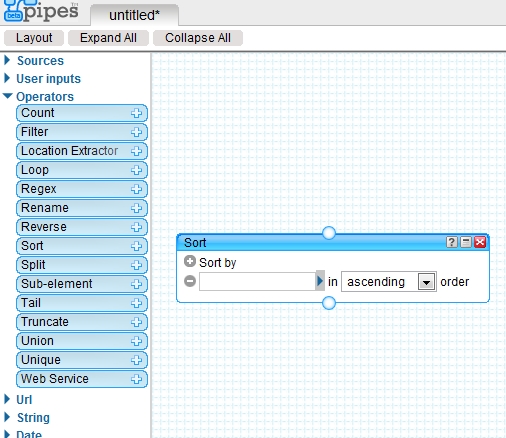
1b) From the Operators drop down, drag Sort onto your screen:
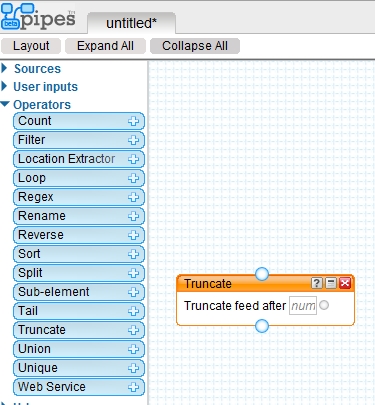
1c) Also from the Operators drop down, drag Truncate onto your screen:
1d) By default the Pipes Output component should already be there:

Step Two – Configure the Components:
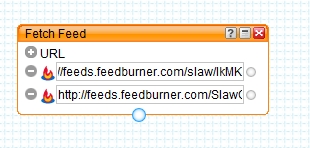
2a) Focusing on the Fetch Feed component, click on the ‘+’ sign next to the word URL to add the exact number of source feeds you want to add to the mix. Of course, clicking on the ‘-‘ sign will get rid of unwanted fields.

Then copy in the URL for each feed source. In this example, I’m mixing the feed for Slaw post entries [5], with the feed for Slaw comments [6].
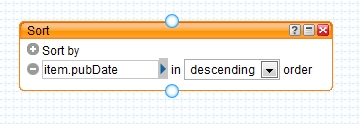
2b) Now we’ll configure the Sort component. For reference purposes, it’s the one highlighted in orange below.
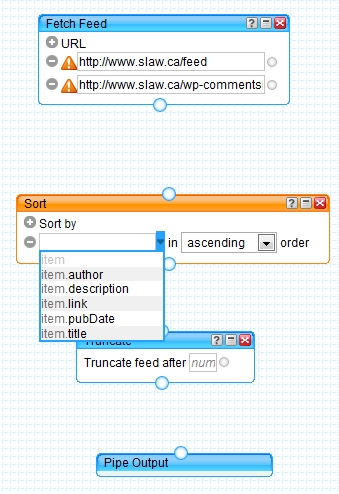
Click on the drop down for the list of fields, and sort by the item date (a.k.a. item.pubDate). And then switch the order drop down from ascending to descending. Like this:
2c) Then change the Truncate component to limit the size of the end product. I chose ’50’, but it could be bigger or smaller.

Step Three – Connect the Components:
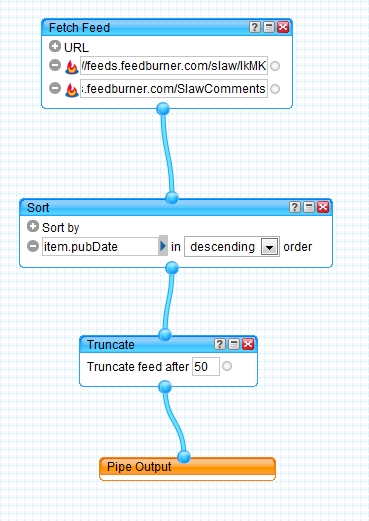
Now the fun part! We want to connect the chain of components, going from Feed Fetch to Sort to Truncate to Pipe Output. Simply put your mouse over the bottom of one component and then click & drag the blue ‘pipe’ to the top of the next component. The end product will look like this:
Step Four – The Big Finish:
Click ‘Save’ in the top right corner – the greyed out button in this image:

Which should cause a new link to become available. Run Pipe should now be in the top-middle part of your screen.

Congratulations! You’ve just created your first Yahoo Pipe!
And now that you’ve read all this, I’m going to tell you a secret … on the top of the each published Pipe’s homepage is a button that says ‘Clone’ – which will allow you to copy the handywork of others, including our sample Slaw test pipe [7], and not have to create things from scratch!
Bonus Advice:
Now that you’ve got a pipe, what are you going to do with it? In a world where lawyers all had personal RSS readers, you could simply hand over the pipe’s RSS feed. But in reality, my best advice is to re-publish it, either on your firm’s intranet, or to the public-web. And to do that, you will need two things: 1) the feed and 2) a publishing tool.
To get a Pipe’s RSS feed, go to the Pipe’s homepage – see our example [7] here. Then, click on ‘More Options‘, and select Get as RSS. Copy that page’s URL from the address bar.
To re-publish the feed, there are lots of great tools. See Feedburner [8] (using their BuzzBoost feature to re-publish), Springwidgets [9], Grazr [10], or for a very simple bulleted list without branding, try Feed2js.org [11].
And that’s it!